+971 42473777
 By
By I want to begin with something that still makes me wince a little. A few years back, I was helping my friend to prepare a pitch deck for a client in Deira. We worked on that presentation for two days, ensuring perfect layout and clean formatting. Everything was in its place. Then came the morning of the meeting when she had to present it. She sent me a million messages and my phone went crazy being tring tring tring… it was a photo from the conference room. And the slides were stretched. The logo looked like an elephant sitting on it.
So what went wrong here? The client’s projector was running 4:3. Her deck was built in 16:9. Nobody had checked. Nobody had even thought to check.
She texted me afterwards: “I spent two days on the content and barely 30 seconds on the set-up. I got it backwards.” That line stayed with me. Because over the years, I have seen people making the same mistake, be it in academia or corporate. Students at AUD are presenting final-year projects. Marketing managers pitching campaigns at GITEX. Or freelancers sharing decks on WhatsApp before a client call.
Consequently, PPT slide dimensions trip up people at every level. The root cause is usually the same, that the slide size was never intentionally chosen.
It might sound as though this would have occurred to a handful of people. But no. An estimated 30 million PowerPoint presentations are made daily, says Oliver Aust. Also, more than 650 million people use PowerPoint monthly (Source: EarthWeb). With such big numbers, it is common to assume that people would be aware of its use. But that is not true.
So this guide will focus on specific details for creating a good-quality PowerPoint presentation for UAE individuals.
Why Does PowerPoint Size Matter More Than You Think:
Dimensions of a PowerPoint slide control how your content fits on the screen, projector, or printed page. Whenever you select the wrong dimension, it causes stretched images, cropped texts, and broken layouts. The worst part is that fixing this issue after designing the entire PPT costs hours. Hence, setting the right dimensions for a PowerPoint slide before you start takes only thirty seconds.
Also, the problem of choosing the wrong size does not announce itself while you are designing. Your laptop screen always fits the table. This mismatch only shows itself in the boardroom when you are presenting to a client, or your professor might be marking you.
| Did You Know?
According to the Fearless Presentations study, verbal communication is the skill sought by 69.3% of employers. Also, LinkedIn ranked it the #1 in-demand skill in 2024. Hence, every presentation you give is a live demonstration of that skill. |
THE RULE THAT SAVES EVERYTHING: Always set your PowerPoint slide dimensions before you add your first text box, shape, or image. Investing 30 seconds in the beginning will save you hours of fixing the formatting.
What Are PowerPoint Slide Dimensions, Exactly?
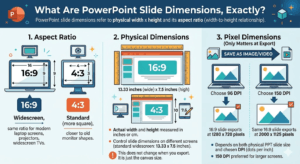
PowerPoint slide dimensions refer to the physical width x height of a slide (measured in inches or cm) and its aspect ratio (width-to-height relationship). Keep in mind that here three things define the full picture:
- Aspect ratio
- Physical dimensions
- Pixel dimensions at export
Aspect Ratio:
Aspect ratio in PowerPoint is the width-to-height relationship. A 16:9 ratio means the slide is 16 units wide for every 9 units tall. It is the same ratio for your laptop screen, modern projector, and widescreen TV. Second, a 4:3 ratio is more square and closer to the old monitor shape that was standard before the widescreen TV became mainstream.
Physical Dimensions:
These are the actual width and height of your slides that are measured in inches or cm. These measurements control the slide dimensions in PowerPoint on different screens. The standard PowerPoint slide size for widescreen is 13.33 x 7.5 inches. This does not change when you export. It is just the canvas size.
Pixel Dimensions:
This only matters at export when you save slides as images or videos. This depends on both the physical PPT slide size and the DPI (dots per inch) you choose for export. At 96 DPI, a 16:9 slide exports at 1280 x 720 pixels. If you raise DPI to 150, the same PowerPoint slide size exports at 2000 x 1125 pixels. This one is preferred for larger screens.
The Standard PowerPoint Slide Size in 2026:
The standard PowerPoint slide size in 2026 is 13.33 x 7.5 inches (16:9 widescreen). Microsoft switched to this default in 2013 when most displays were moved to widescreen. Before that, 4.3 at 10 x 7.5 inches was the standard size for decades.
The Three PowerPoint Slide Sizes That Cover 90% of Use Cases
| Format | Ratio | Inches | Centimeters | Pixels (96 DPI) | Best for |
| Widescreen | 16:9 | 13.33 x 7.5 | 33.83 x 19.05 | 1280 x 720 | Modern screen, YouTube, projectors, UAE boardrooms |
| Standard | 4:3 | 10 x 7.5 | 25.4 x 19.05 | 960 x 720 | Old projectors, printed handouts, and some tablets |
| Widescreen Full HD | 16:9 | 13.33 x 7.5 | 33.83 x 19.05 | 1920 x 1080 | HR displays, video exports, large LED screens |
| Key Takeaways on Standard Sizes
– 16:9 (13.33 x 7.5 in) is the default for all PowerPoint versions since 2013 – 4:3 (10 x 7.5 in) is still used for certain projectors and print handouts. – Physical dimensions in inches do not change when you increase the DPI. Only the export pixel layout counts. – Both 16:9 (720p and 1080p) sizes use the same inch dimensions. They differ only in export resolution – Always set PowerPoint presentation dimensions before adding any content whatsoever |
Pixels, DPI, And Why Exports Look Different Than Expected:
PowerPoint’s physical size remains fixed in inches. In addition, the pixel dimensions only appear at the time of export, based on the DPI settings. Moreover, the default export is 96 DPI = 1280 x 780 pixels for 16:9. If you need Full HD (1920 x 1080), then it is required to set DPI to 144.
The change in pixels at the time of the expert genuinely confuses even experienced users. You have a beautiful 16:9 deck. You export the slides as images to post on your LinkedIn. The presentation looks fine, but the images turn blurry.
Why?
Because at the default 96 DPI, a 13.33-inch-wide slide exports as only 1280 pixels wide. And on a high-resolution screen, this is not enough.
DPI References: What Each Setting Actually Produces
| DPI | Output for 16:9 slide | Quality Level | Best For |
| 96 DPI (default) | 1280 x 720 px | Standard HD | Email, web sharing, screen display |
| 144 DPI | 1920 x 1080 px | Full HD | HR projectors, LinkedIn, YouTube |
| 150 DPI | 2000 x 1125 px | Full HD+ | Large and premium screens |
| 200 DPI | 2667x 1500 px | Ultra HD | High-res displays, social media |
| 300 DPI | 4000 x 2250 px | Print quality | A3/A4 printing, exhibition, press-ready files |
How To Change Export DPI In Windows
- Go to File → Options → Advanced.
- Scroll to “Image Size and Quality.”
- Change the default resolution to your desired value
On Mac:
PowerPoint does not expose this setting directly.
- Export as video at 1080 quality
Or
- Use File → Export → Save as Picture.
- Then open in Preview to confirm resolution.
WATCH OUT: The DPI setting in PowerPoint is file-specific. If you open a new presentation, it will automatically be set to 96 DPI. Therefore, always check for the DPI before you begin working on the PPT.
The Font Size Nobody Tells You (Matched to Each Slide Format)
This is something that almost no one talks about in PowerPoint slide dimension guides. DIFFERENT SLIDE FORMATS DEMAND DIFFERENT FONT SIZES.
A heading that reads perfectly at 13.33-inch PowerPoint widescreen dimensions at 44pt will look oversized on a 4:3 slide viewed on a 10-inch tablet. And it would be too small for a printed A4 layout.
I started paying attention to this specific detail when my professor pointed out my classmate’s presentation. It was initially created at a 16:9 PPT format size and then converted to a 4:3 file without adjusting the pt size. Hence, the headings felt too big, and the text became harder to read. The slide dimensions were technically correct. But the typography had not been adjusted to match.
| 16:9 Widescreen (Modern) | 4:3 (Legacy) | A4 Printed (UAE Standard) | |
| Title | 40-54 pt | 36-44 pt | 28-36 pt |
| Heading | 32-40 pt | 28-34 pt | 22-28 pt |
| Body Text | 24-28 pt | 20-24 pt | 18-22 pt |
| Captions | 18-20 pt | 16-18 pt | 14-16 pt |
The 6-6-6 rule for UAE people: there is this practical rule for presentations. It says there should not be more than 6 words per bullet, 6 bullets per slide, and 6 text-heavy slides in a row. UAE businesses prioritise efficiency and visual clarity.
How To Change PowerPoint Dimensions Step-By-Step:
Changing the dimensions of a PowerPoint slide is easy and straightforward. The following are the step-by-step instructions that you need to follow to change the PowerPoint dimensions:
1. Open the Slide Size Menu
- Go to the Design tab on your top ribbon.
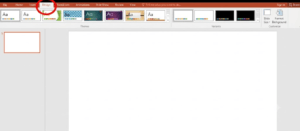
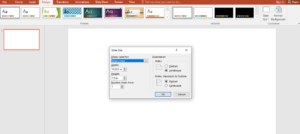
- Look for the Slide Size button (typically located on the far right of the Customise group).
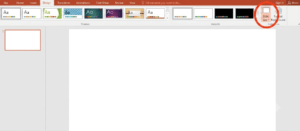
- Choose Your Dimension
- Presets: Click either Standard (4:3) or Widescreen (16:9) from the drop-down menu.
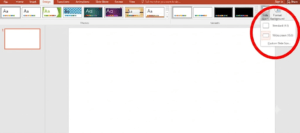
- Custom dimensions: Click Custom Slide Size. Here you can manually type in your exact height and width or choose from a list of presets (such as A4, Banner, or Overhead).
- Set Orientation (Optional)
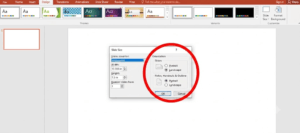
In the same Custom Slide Size window, you can select whether you want your slides or handouts to be in Portrait or Landscape format.
- Apply Your Changes
- Click OK.
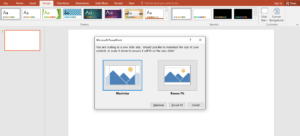
- PowerPoint will prompt you with two scaling points:
-
- Maximise: Scales your content up. This is great for filling new space but may cause some objects to bleed off the edge.
- Ensure Fit: Shrink or fit your content onto the new layout. This is the safest choice to ensure no elements are cut off, though it may leave some blank space.
Does Microsoft Copilot Generate Slide Dimensions Automatically?
No. Microsoft can generate entire presentations from a prompt, reorganise slides, and suggest layouts. That is genuinely impressive. However, Copilot inherits the dimensions of whatever file you are working in. If you start with a default PPT dimension that is 16:9, Copilot will generate the entire presentation in 16:9. The same rule applies to 4:3.
Choosing The Right PowerPoint Slide Dimension For Your Requirement:
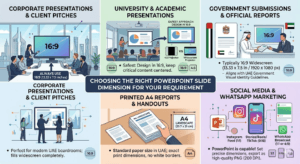
Having information and clarity on the available PowerPoint sizes is useful. But knowing which one to use in a specific context is what actually matters. If you are wondering how to choose the perfect PowerPoint slide size, then stay with me so we can find out the relevant presentation sizes for every requirement:
Corporate Presentations & Client Pitches:
Always use 16:9 (13.33 x 7.5 inches). It is important to use this size for a PowerPoint slide for a modern UAE boardroom meeting. Whether you are presenting in DIFC, Abu Dhabi Global Market, or Sharjah’s SRTI Park, the display will be widescreen. Hence, a 16:9 PowerPoint slide size fills the screen perfectly and leaves no wasted space.
University and Academic Presentations
There are many lecture halls in UAE institutes that still use 4:3 projectors. However, here is the safest approach if you cannot confirm the size:
- Design in 16:9 and keep the critical content away from the far left and right edges.
- A 16:9 deck displayed on a 4:3 projector shows black bars on the sides. It is not ideal, yet tolerable.
- A 4:3 deck stretched across a widescreen projector looks distorted. This is absolutely not tolerable.
Government Submissions & Official Reports:
In general, the government submissions and official reports follow the standard PowerPoint size that is 16:9 Widescreen (13.33 x 7.5 inches or 1920 x 1080 px). Make sure that your PPT presentation dimensions align with the UAE Government Visual Identity Guidelines.
Printed A4 Reports & Handouts:
Switch to A4 landscape (29.7 x 21 cm). This is the standard paper size used across the UAE. A4 gives you the exact print dimensions with no rescaling or white borders.
Social Media & WhatsApp Marketing:
PowerPoint is a surprisingly capable social media graphics tool when you use it right. For Instagram feed: 1:1 (10 x 10 in). For stories, reels, and TikTok: 9:16 vertical (7.5 x 13.33 in). The WhatsApp broadcast content shared as in the image is set on 1:1 or 4:5. Make sure to set these dimensions for PowerPoint slide configurations, export as PNG at 200 DPI so the quality holds on any phone screen.
Pro tip: Getting dimensions right is the foundation. What you build on that foundation determines whether people actually remember your presentation. If you want practical, proven ideas for making your content more compelling — especially for UAE audiences — these Creative Presentation Ideas are worth reading before your next deck.
Pre-Presentation Dimension Checklist:
You now know everything about PowerPoint slide dimensions, format, and layout. However, there is always a risk of making a mistake.
Therefore, before you begin working on your presentation, run through this checklist. Tick each item as you go.
This will take you three minutes and save you from hours of fixing formatting when anything goes wrong.
| PowerPoint Slide Dimension Pre-Checklist
● Confirmed the display type at the venue (widescreen 16:9, legacy 4:3, LED wall, or custom) ● Set PowerPoint slide dimensions to match the venue display before starting design ● All image sources at minimum 150 DPI for screens (300 DPI if printing) ● Critical content kept at least 0.5 in from all angles ● If printing or sharing as a PDF, set the dimensions to A4 before exporting ● If using Copilot, dimensions are set before generating any content ● Exported files are tested on the actual device or screen that will be used on that day ● Backup copy saved as PDF and stored in a format ready to share via WhatsApp or email |
Final Words:
I still think about that message from my friend. It is an ordinary story that almost all of us have gone through in some part of our lives.
Getting PowerPoint slide dimensions right is not a design skill. It is meant to be a compulsory preparation habit. Once you understand the core logic of when to use 16:9, 4:3, or A4 paper, half the problem will be solved there.
Keep in mind that professional relationships are built before the deal in the UAE, so your first impressions carry major weight. And yes, nobody will ever praise your slide dimensions. But they will definitely feel the difference when everything looks clean, intentional, and prepared.
Make sure to know the PPT slide sizes of the venue where you will be presenting before even writing a word on your presentation. It looks like a small decision, but it has a great impact on your overall presentation.
FAQs:
- What Are The Default PowerPoint Slide Dimensions?
Ans. The default PowerPoint presentation slide size is Widescreen (16:9). It measures 13.33 x 7.5 inches (33.867 x 19.05 cm).
- What Are The Dimensions Of A PowerPoint Slide?
Ans. The standard PowerPoint presentation size is Widescreen (16:9), measuring 13.33 x 7.5 inches. The legacy Standard (4:3) size measures 10 x 7.5 inches.
- What Size Are PowerPoint Slides In Pixels?
Ans. PowerPoint slides typically measure 1920 x 1080 pixels for modern Widescreen (16:9) displays or 1024 x 768 pixels for standard (4:3) formats.
- What Is The Difference Between 16:9 & 4:3 PowerPoint Slide Sizes?
Ans. The primary difference is the aspect ratio and screen coverage. 16:9 is a wider, rectangular format, whereas 4:3 is boxier and closer to a traditional square.
- What Is The 6-6-6 Rule In Presentations?
Ans. It is a presentation design guideline that prevents information overload by keeping your slides scannable and forcing your audience to focus on you rather than reading walls of text.
- 6 bullet points maximum per slide
- 6 words maximum per bullet point
- 6 text-heavy slides maximum in a row
- How To Change The PowerPoint Slide Size To A4?
Ans. Navigate to the Design tab on the top ribbon, click Slide Size on the far right. Next, select Custom Slide Size. Choose A4 Paper from the “Slides sized for” dropdown, set your preferred orientation, and click OK.
- What Font Size Should I Use For Different PowerPoint Slide Dimensions?
Ans. For a clear and readable presentation, base your font sizes on audience distance and screen size rather than the slide’s aspect ratio (e.g, 16:9 or 4:3). The standard ppt design guidelines suggest the following ranges:
- Main titles: 36-44 pt
- Subtitles and headings: 28-36 pt
- Body text and bullet points: 18-24 pt
- Captions, footnotes, or labels: 14-16 pt (minimum).
- Does Changing DPI Affect PowerPoint Slide Size?
Ans. Changing the DPI does not change the physical dimensions (inches or centimetres) of your PowerPoint slide. However, DPI directly determines the pixel resolution and sharpness when you export your slides as images.
- What Happens If I Change PowerPoint Slide Dimensions After Adding Content?
Ans. When you change slide dimensions in PowerPoint after adding content, it scales the existing element using one of two automatic prompts.
- Ensure fit
- Maximize
- Why Is Copilot So Bad At PowerPoint?
Ans. Copilot struggles with PowerPoint primarily because it is designed as an accelerator rather than an autonomous strategist. When asked to build slides from scratch with vague prompts, it defaults to generic corporate templates, fabricated statistics, and uninspired design choices.
- Is PowerPoint Still Used In 2026?
Ans. Yes, Microsoft PowerPoint remains highly relevant and is widely used in 2026. While new AI-first presentation apps and collaborative platforms have emerged, PowerPoint continues to dominate the corporate, educational, and business landscape.
- Is A PowerPoint Slide 1920 x 1080?
Ans. Yes, 1920 x 1080 pixels is the standard pixel dimension for a modern PowerPoint slide.